Roster runs in your phone's browser. Add it to your home screen and it gets its own icon and opens full screen, like any other app. There's nothing to download from the App Store or Google Play, and it updates itself.
iPhone
Open Home in Safari. For your first few visits, Roster shows Add Roster to your phone at the bottom of the screen.
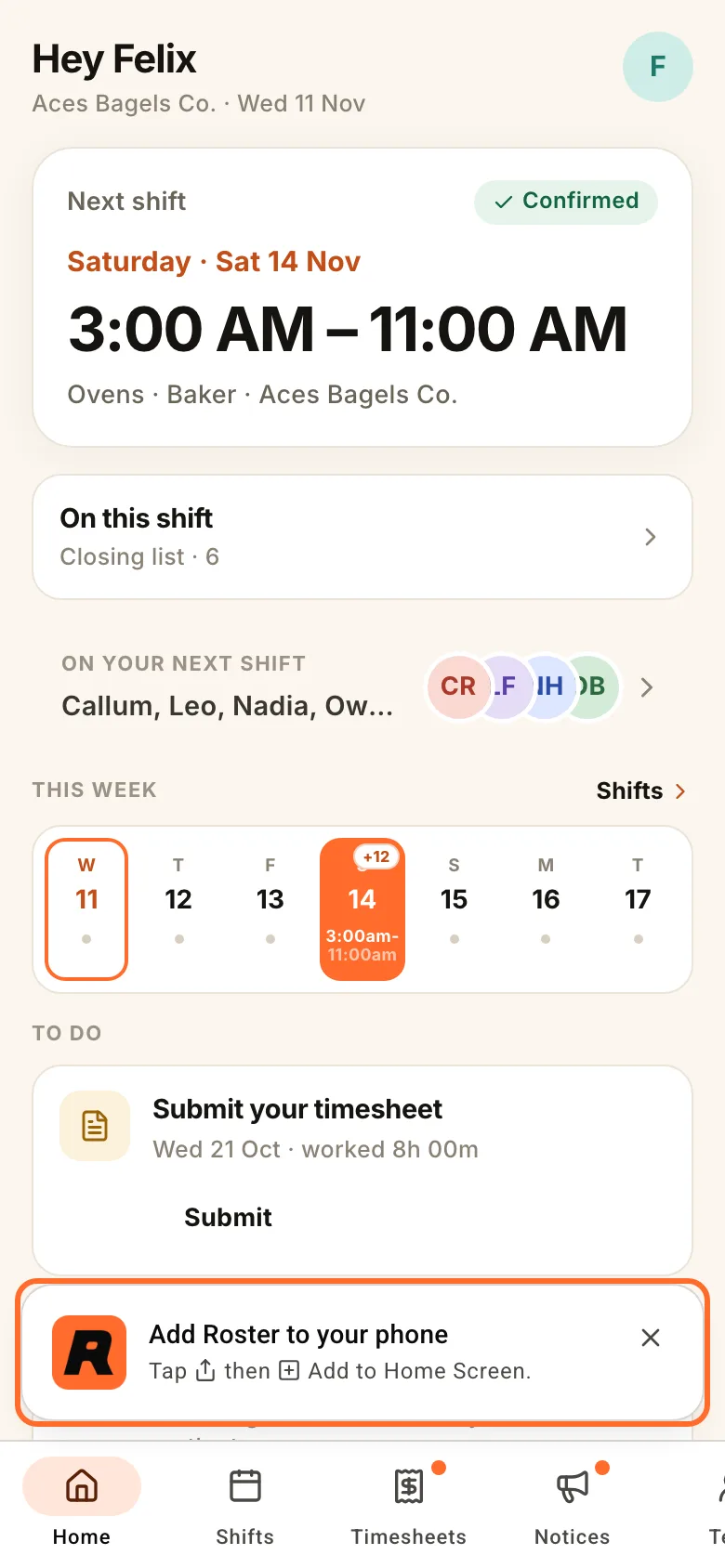
- Tap the ··· button next to Safari's address bar, then Share. If Safari already shows the Share button (a square with an arrow pointing up), tap that instead.
- Scroll down and tap Add to Home Screen. Not in the list? Tap Edit Actions at the bottom and add it.
- If you see Open as Web App, leave it on. Tap Add.
Using Chrome on your iPhone? Tap Share at the right of the address bar, then Add to Home Screen, then Add.
From now on, open Roster from its new icon. The first time, you'll need to sign in again, because the icon doesn't share your browser's sign-in. Enter your mobile or email, then type the 6-digit code into Roster. Don't tap the link in the email, because it opens Safari instead of the app.
Apple's own steps are in Turn a website into an app in Safari.
Android
Use Chrome. Open Home, tap Add to home screen on the Add Roster to your phone banner, then tap Install.
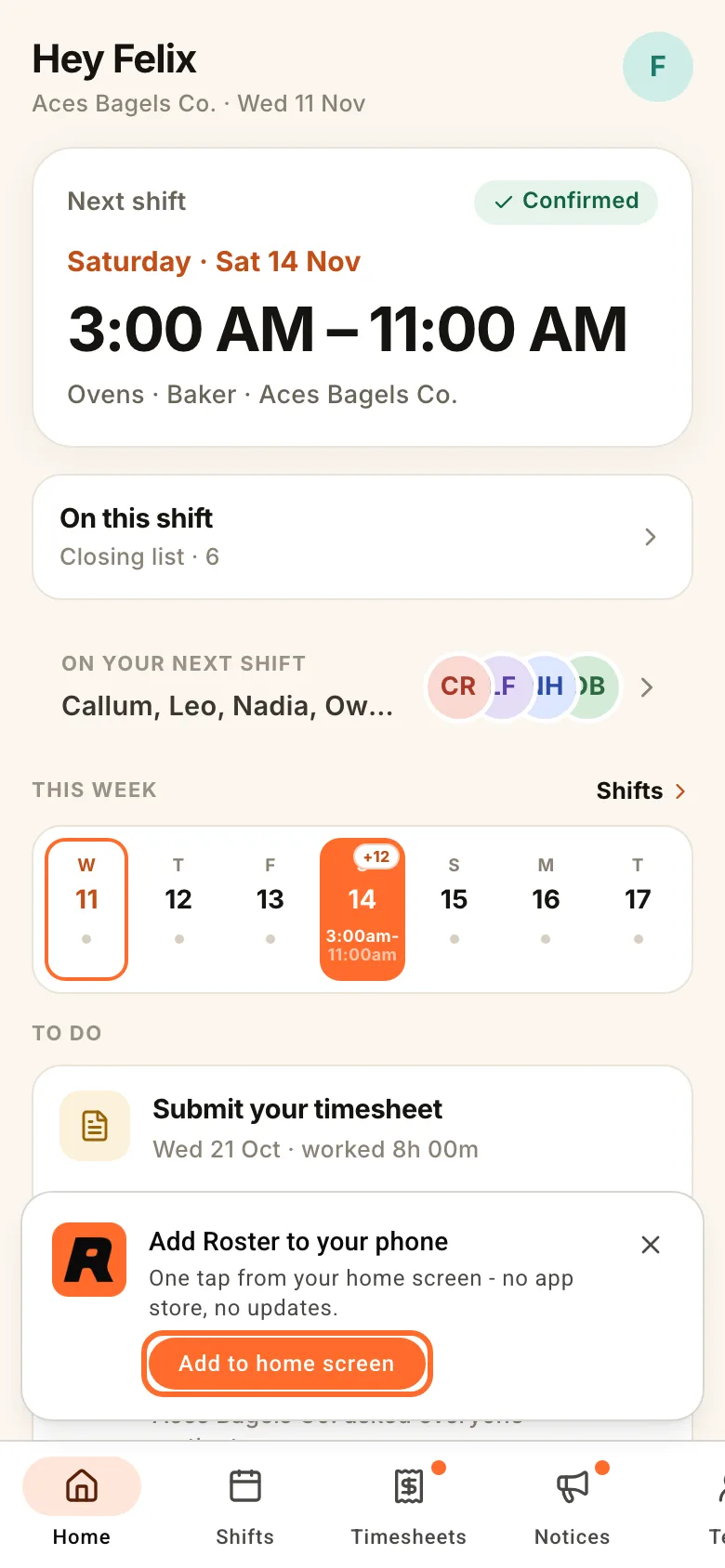
No banner? Tap ⋮ at the top right of Chrome, then Install and create shortcut, then Install. On older versions of Chrome, the menu item is called Add to home screen.
Roster appears on your home screen and with your other apps, and you stay signed in. Google's own steps are in Use web apps.
Samsung phone? Install Roster from Chrome, not Samsung Internet. Samsung's browser can show Unsafe app blocked when it installs Roster. That warning is about how Samsung packages web apps, not about Roster. In Samsung Internet, the banner has an Open in Chrome button that opens Roster in Chrome.
Closed the banner?
It comes back a few days later, then stops after a few tries. You don't need it, because the steps above work at any time. Your manager can also turn it back on for the whole team.