You can bring a week of shifts and your whole team across in one sitting. Keep Deputy running until your first week is published in Roster.
1. Export the week from Deputy
In Deputy, open Schedule. Pick your location and the Week view with every area showing, because Deputy exports only what's on screen. Then click Options, Export schedule, choose CSV and click Export. Deputy's own steps are in Printing your schedule.
No CSV? Options, Print schedule with PDF works too.
2. Import it into Roster
Open Schedule on the same week, click Import and drop the file.
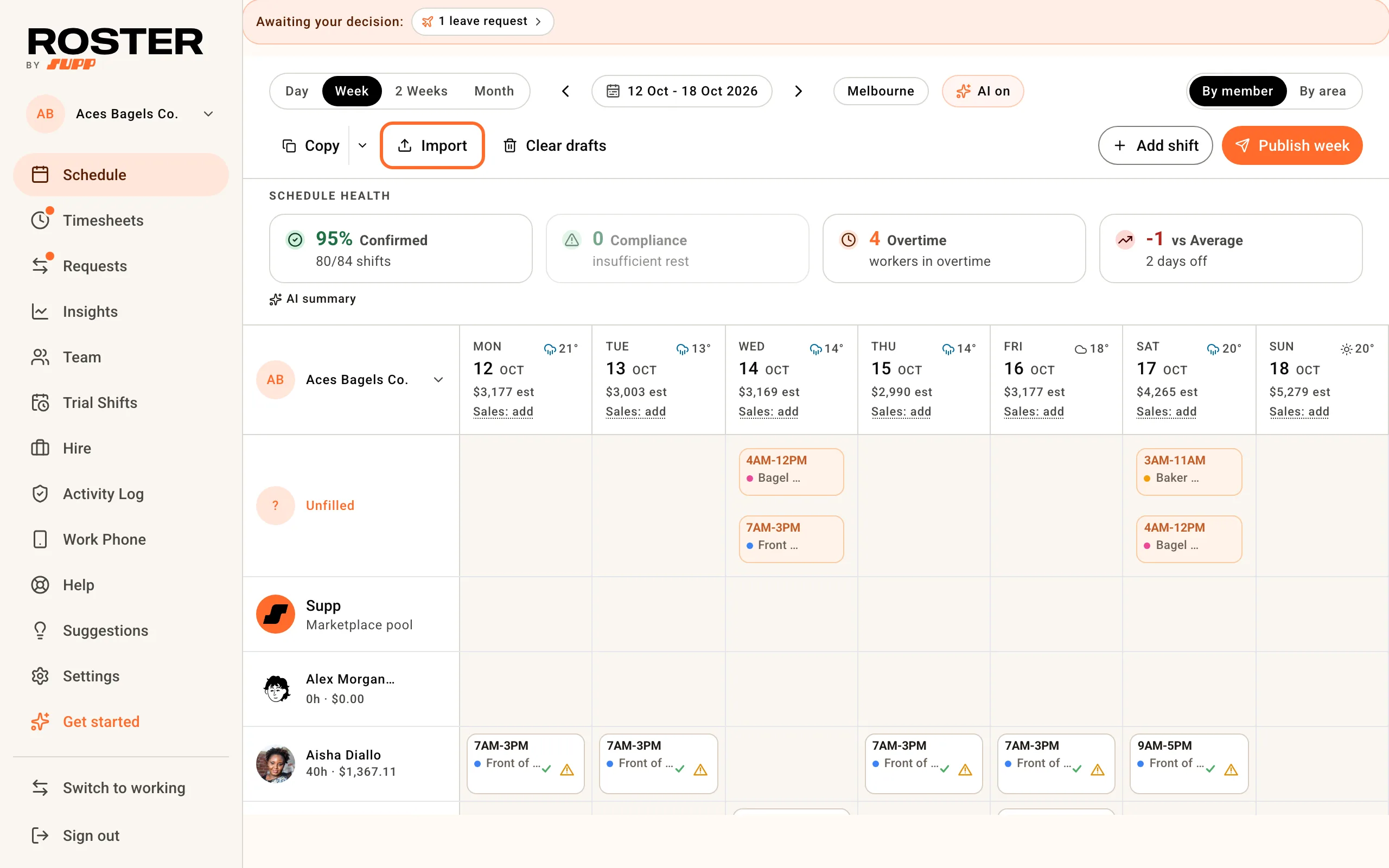
Roster reads Deputy's Team Member, Start Date, Start Time, End Time and Area columns. Areas you don't have yet are created for you. Breaks, costs, comments and Deputy's published status don't come across, so every shift arrives as a draft with no unpaid break.
Check the shifts, then continue. Anyone not yet on your team gets an invite step: choose Add contacts later and their shifts wait under their name until step 3. The full walkthrough is in Import, build and publish a schedule.
3. Bring your team across
The schedule file has names but no phone numbers, so export your team from Deputy as well. In Deputy, go to People, Add People, Bulk import and update, Update team members and Download a CSV. You need to be a System Administrator. Deputy's steps are in Bulk import and update.
In Roster, open Team, Invite, Multiple and drop that file. Roster picks up each person's mobile and email.
- Names. Roster joins the first and last name columns into one name, and matches a preferred name to your schedule too.
- Shifts follow people. Where the names match, Roster links each person to the name your schedule import added. Pick the link yourself for anyone it misses, so their shifts move to them when they accept.
- People already on your team (matched by email or mobile) are marked and not invited again. Remove anyone else who shouldn't get an invite.
- Send invites now invites everyone straight away. Untick it to save the list and send it later from Onboarding.
Pay through Xero? From Xero brings full names, contact details and pay rates instead.
4. Check and publish
Look over the drafts on Schedule and click Publish week. What your team receives, and how to change it, is in Import, build and publish a schedule.
5. Payroll
Sending timesheets to Xero from Deputy today? Connect Roster with Set up Xero. The Switching from Deputy or Tanda? section of Complete a pay run with Xero covers what works differently. Other payroll connections are in Integrations.
Before you cancel Deputy
- Roster brings across shifts and people. Past timesheets, leave balances and uploaded documents stay in Deputy.
- Export what you need to keep first. Deputy's Data Exporter emails a System Administrator a CSV of rosters, employees, timesheets or leave.
- Deputy closes access on cancel. Its cancellation steps say you lose access as soon as you cancel, so export before you do.