A runsheet is one email per crew member with everything they need for the day: when and where they're working, the run of show, what to wear, how to get there, and who to call. Each person's copy is personal, with their own shifts at the top.
1. Open the builder
Open the event from Events and find the Runsheet section. Click Create runsheet the first time, then Open builder after that.

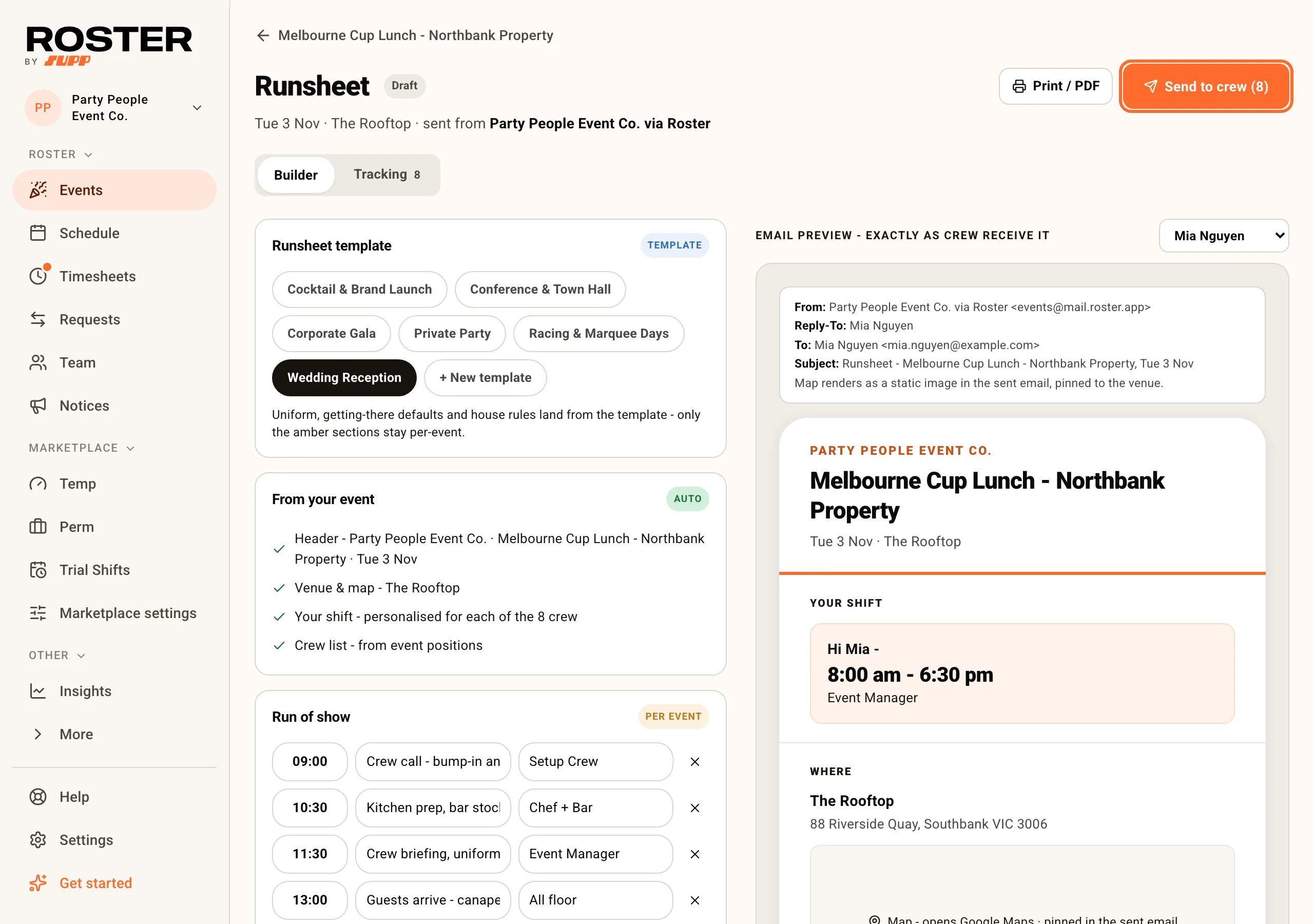
The builder has your editor on the left and the email preview on the right. The preview is exactly what crew receive, and it updates as you type. Drafts save as you go, so there's no save button.
2. Start from a runsheet template
Runsheet template fills in your venue's standard text: uniform, getting-there defaults and house rules, plus any run-of-show steps the template carries. + New template creates one, and the board's Runsheet templates section lists them all for editing. If the event came from an event template with a runsheet template linked, it's already picked.
From your event shows what Roster fills in for you: the header with the event's name and date, the site with a map, each person's own shifts, and the crew list.
3. Write or import the run of show
Run of show is the timeline, one row per step: time, what happens, and who or where. Add row adds one.
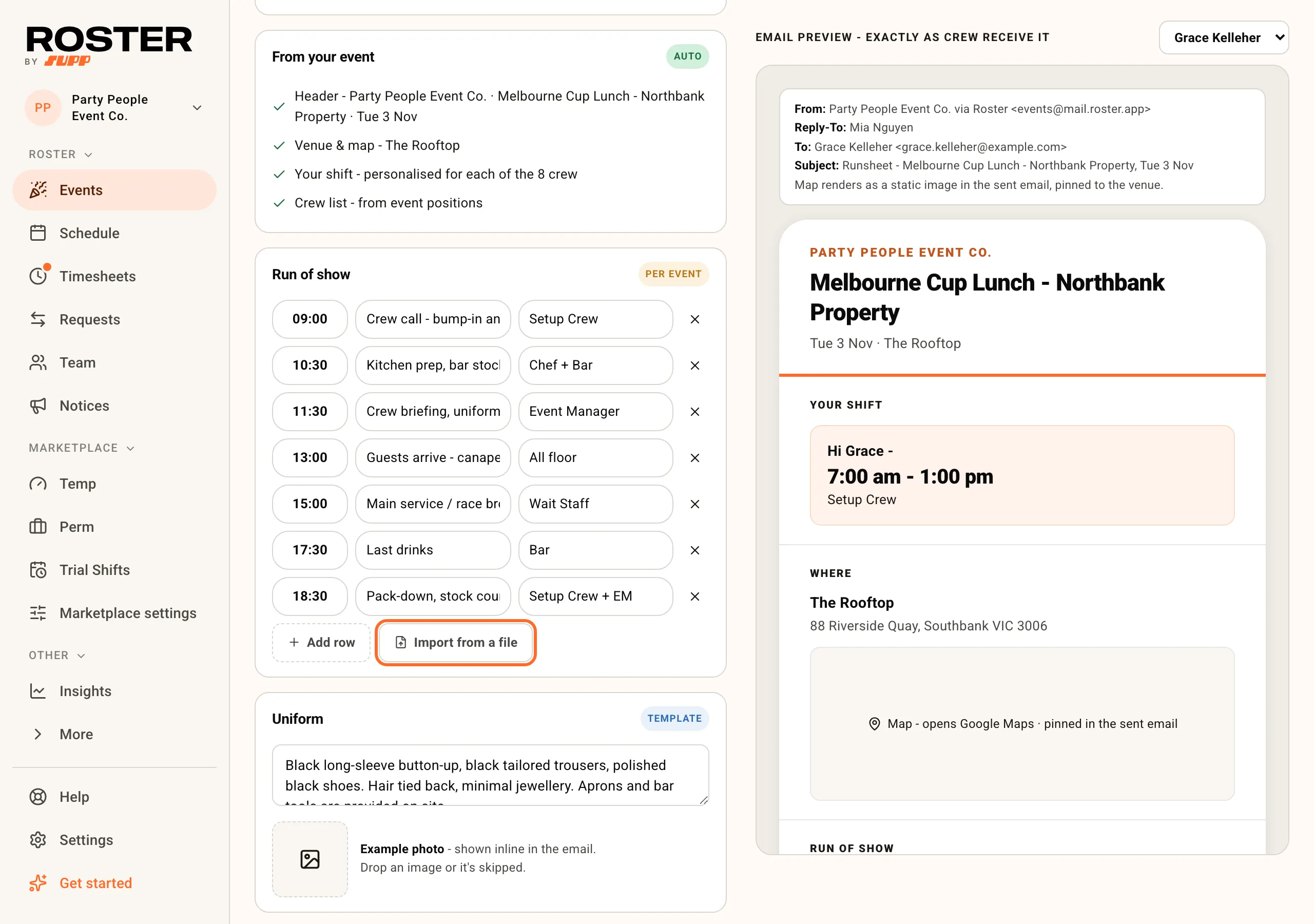
If your client or venue already sent you a run sheet, click Import from a file instead of retyping it:
- Choose a PDF, a photo or screenshot, or an Excel or CSV file. Word documents aren't read, so save them as a PDF first.
- Suggestions read the timeline, plus any uniform, getting-there and notes sections in the file.
- Check what was found. Tap the X to leave out a step, and untick any section you don't want. Anything the file was unclear about shows in an amber box.
- If the builder already has steps, choose Add these below them or Replace them with these.
- Click Add to runsheet. Everything lands in the builder for you to edit, and nothing goes to crew until you send.
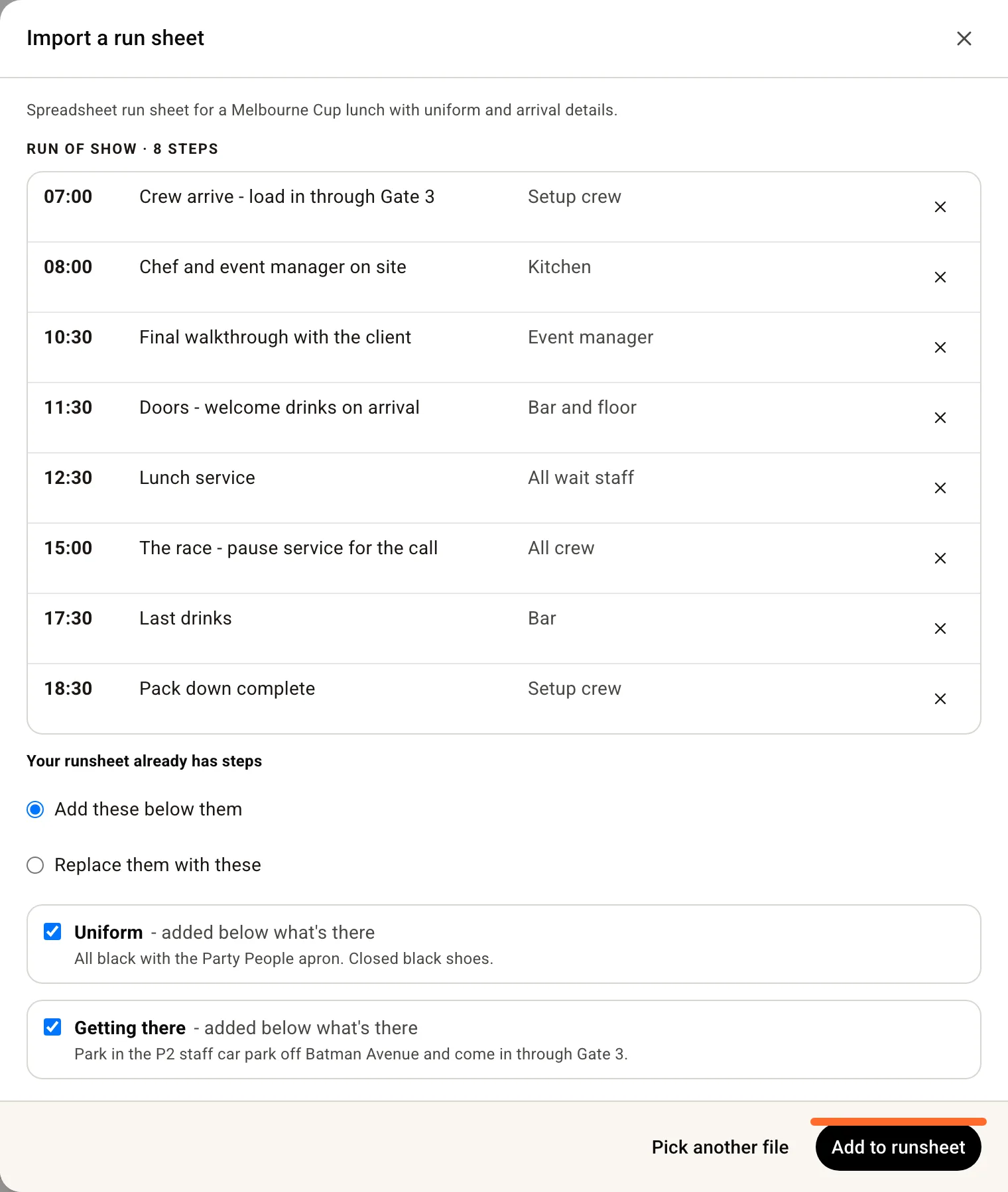
Times come out in 24-hour format. A time that can't be read with confidence, such as "after speeches", is kept as written rather than guessed.
4. Uniform, getting there and the day's contact
- Uniform comes from the template. Change it for this event only, or drop in an example photo.
- Getting there covers parking, loading dock and entry for this site.
- On the day - Staff Contact is the person crew should call on the day. Replies to the runsheet email go to them. Leave it empty and replies go to whoever sends the runsheet.
5. Notes
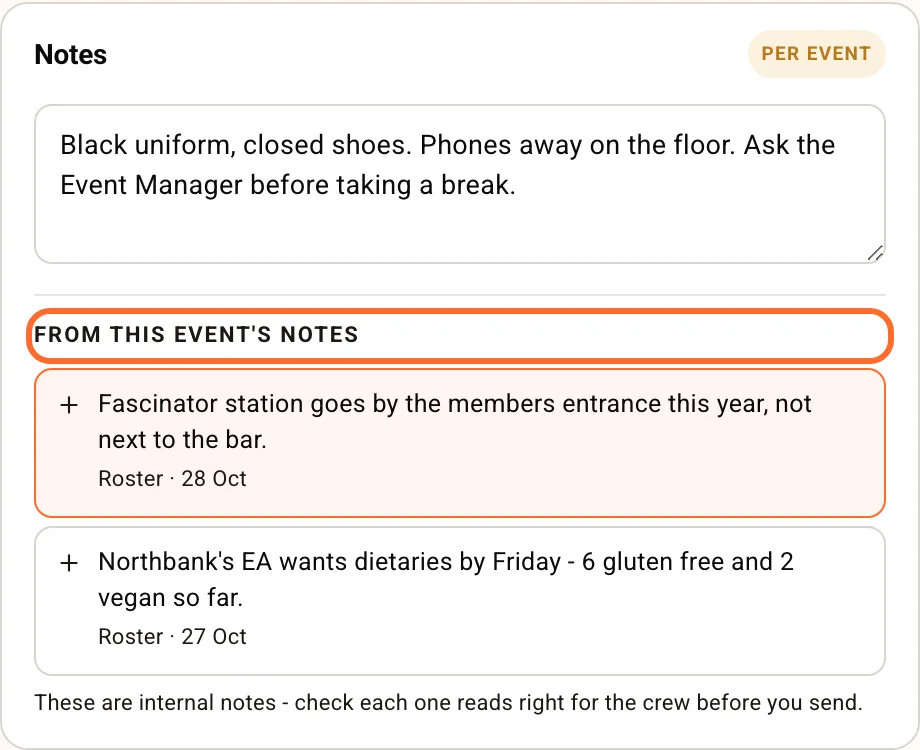
Notes is free text for this event: menu changes, allergens, client quirks. It starts empty.
Under it, From this event's notes lists the notes your managers have written on the event page, with who wrote each one and when. Tap one to add it to the runsheet. Those notes were written for managers, so read each one before you send it to the whole crew.
6. Check what each person gets
Use Preview as above the preview to see any crew member's copy. Your shift lists every shift that person has on this event, in time order, exactly as it is on the schedule:
- One shift on the event day shows just the times: "8:30 am - 3:00 pm".
- If any of their shifts falls on another day, such as a bump-in the day before or day 2 of a multi-day event, every line names its day: "Thu 30 Jul, 2:00 pm - 6:00 pm".
- Times are always in your venue's time zone, wherever you are when you open the builder.
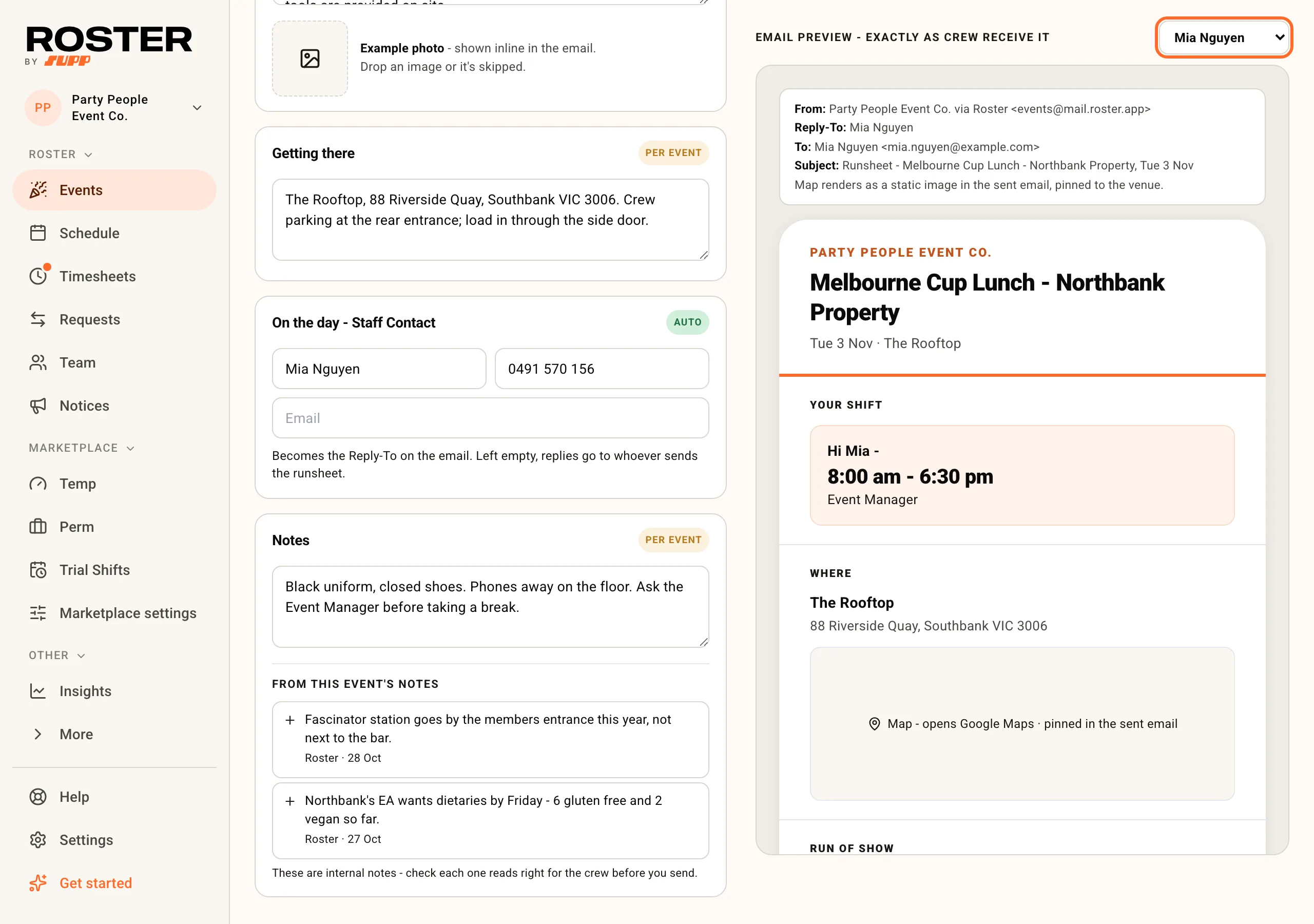
The runsheet never uses the times you planned on the event page. If you move a shift on the schedule, the runsheet follows it.
7. Send it and track it
Click Send to crew. The number on the button is how many crew have an email address on file. Before it sends, Roster names anyone with no email, so you can add it in Team first or send without them.
The Tracking tab shows each person's status: Sent, Delivered, Opened, Bounced or No email.
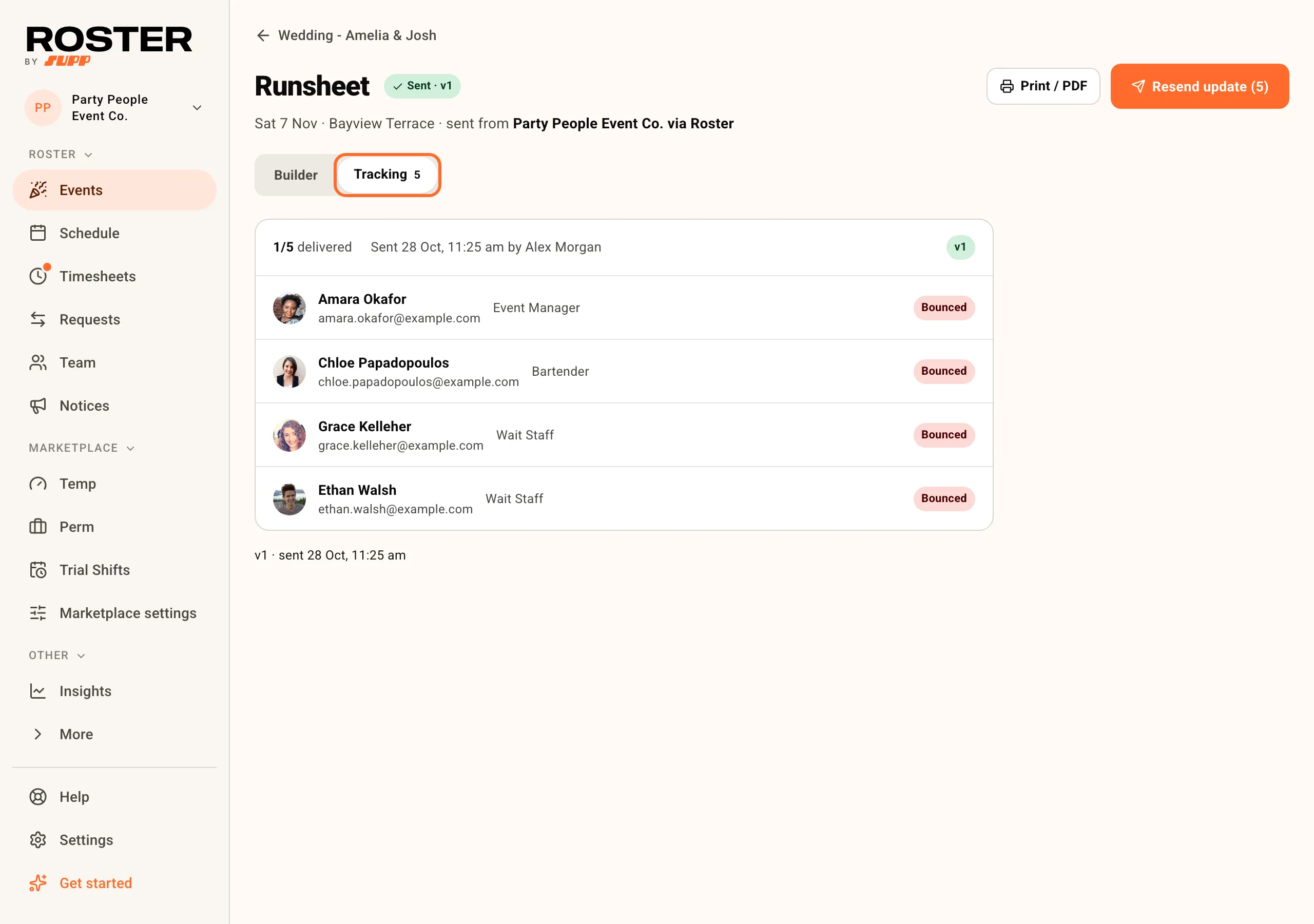
- People assigned after you sent show as Not sent yet. Send to new crew emails just them, so nobody else gets a second copy.
- Changed something? Resend update sends the new version to everyone, with "Runsheet update (v2)" in the subject so they know it's changed.
Before this, Plan and staff an event covers creating the shifts the runsheet reads from.