Opening and closing on a laminated sheet or in the group chat gets skipped. In Roster the list lives on the clock: staff read it before the shift, tick it on their phone once they have clocked in and before they clock out, or on the tablet after a punch, and every tick shows on the timesheet. The punch always comes first. A list never delays or blocks a clock-in or clock-out.
1. Write your lists
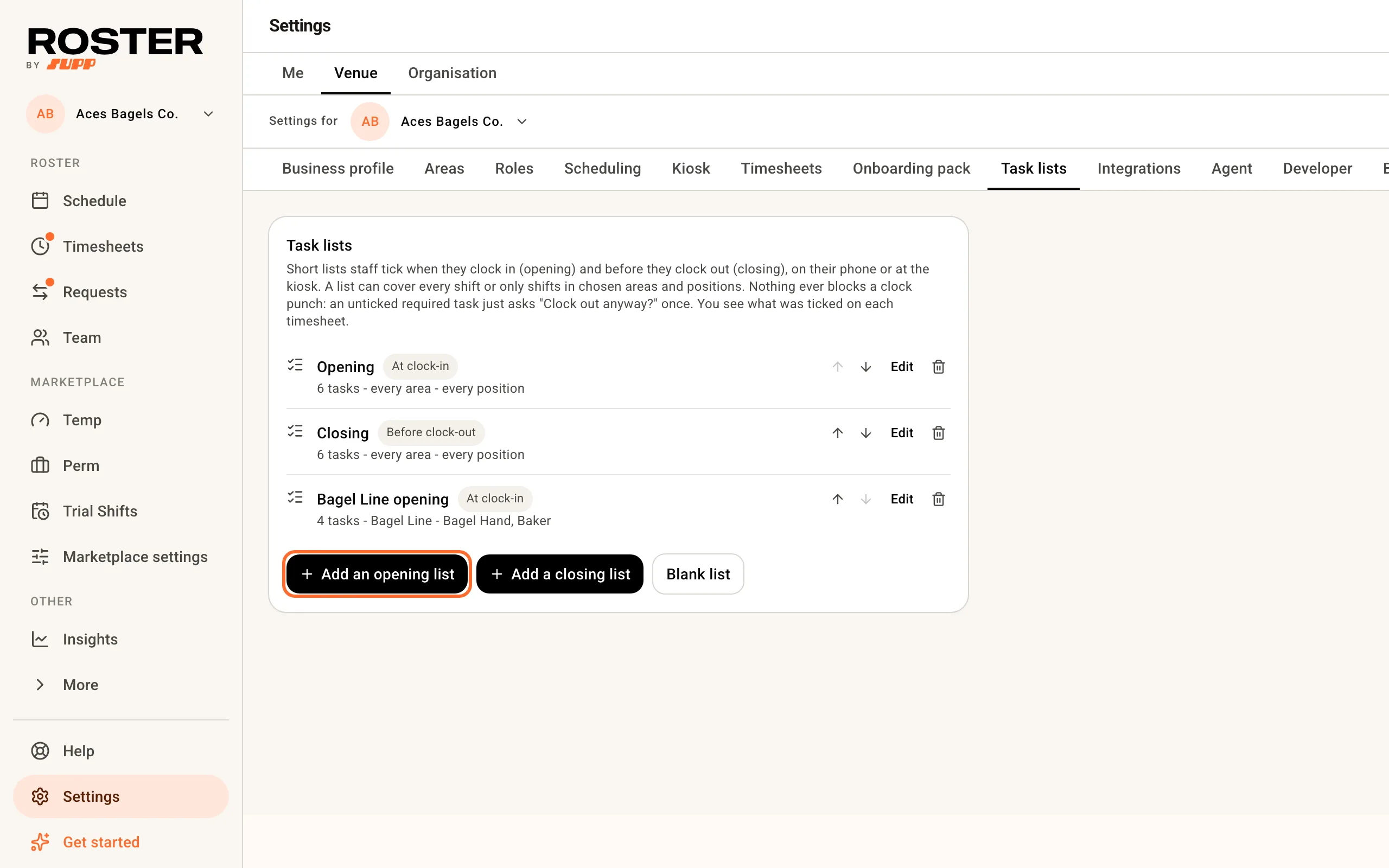
Open Settings, Venue, Task lists and click Add an opening list or Add a closing list. Each opens an example to change (unlock and turn off the alarm, lights and music on, coffee machine on, float counted, bathrooms checked, specials board written) rather than a blank page. Blank list starts from nothing.
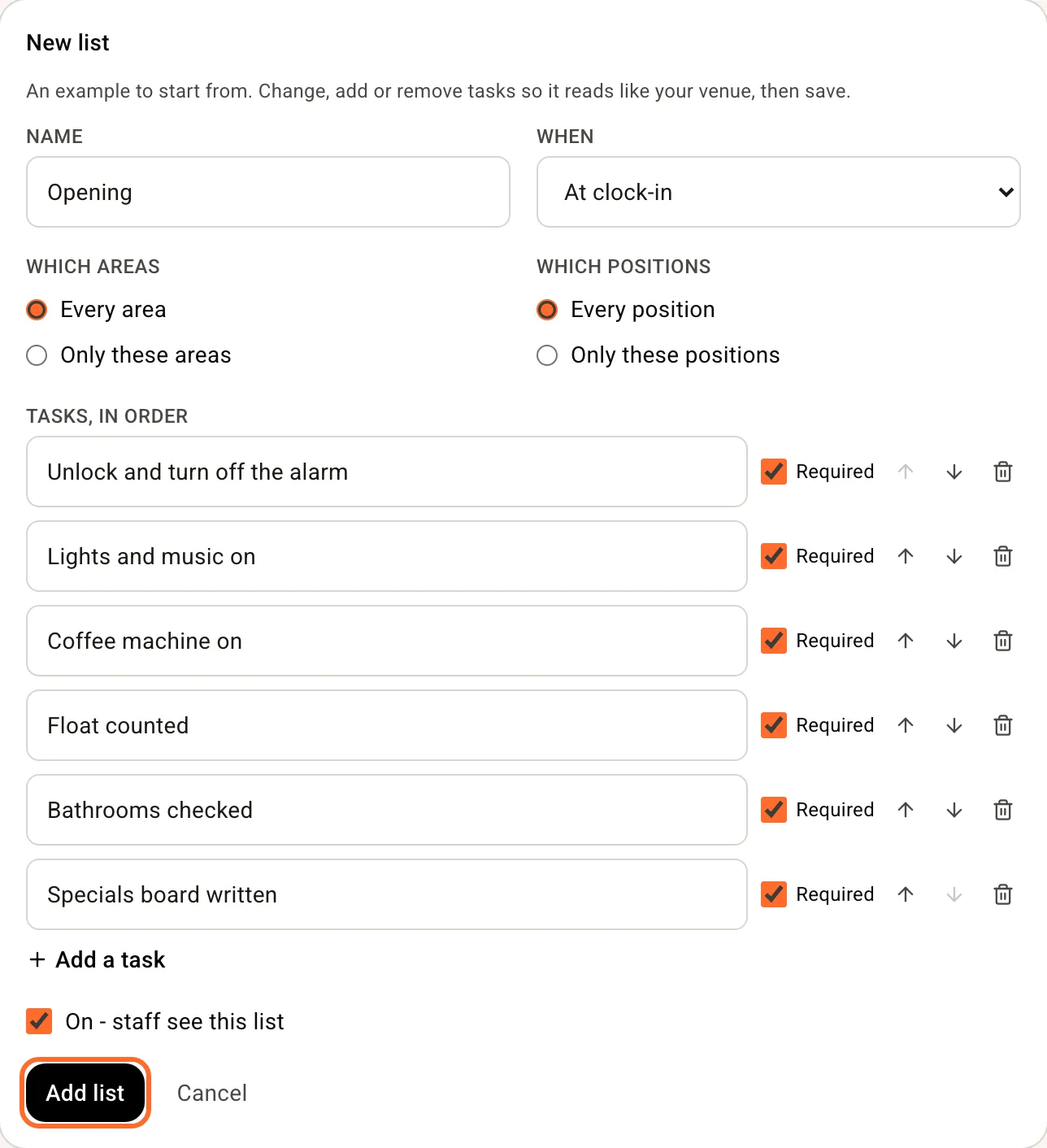
In the editor:
- Name - what staff see on the card. Opening, Kitchen close, Bar open.
- When - at clock-in for an opening list, before clock-out for a closing list.
- Which areas, Which positions and Which people - Every area, Every position and Everyone put the list on every shift. Only these areas, Only these positions or Only these people narrows it, so a kitchen closing list for chefs and a floor closing list for front of house can run side by side, and a till-count list can go to the two people who open. A shift carries a list only when every scope the list names matches, so a list for one person on every area and position is that person's list alone. An open shift has nobody on it yet; it gets a people list once someone is assigned.
- Tasks, in order - one line each, up to 40. Tick Required on a task that matters: if it is still unticked when the worker clocks out, Roster asks once, "2 closing tasks not ticked. Clock out anyway?". They can always clock out, and their clock-out time is the moment they confirm.
- On - staff see this list - untick it to pause a list without deleting it, over a closure say.
Click Add list. On a wide screen the preview on the right shows the card as staff will see it on their phone.
Edit changes a list everywhere it is carried, published shifts included. Remove takes it off every shift. Nothing is seeded: a venue with no list sees nothing at the clock.
2. Add a list to one shift, or turn lists off for one
Open any shift on the schedule, draft or published. The Task lists row shows the lists the shift carries from its area and position. Add a list to this shift… puts any other list on that shift only - a deep-clean list on the Friday close, say, or the Bagel Line opening on a counter shift when the baker is away. The picker only offers lists the shift does not already carry, and a list you added shows with an × to take it off again. The list itself stays in Settings, so an edit there reaches this shift too, and copy week and templates keep the lists you added.
Tick No task lists this shift for a one-off with none, like a stocktake. That tick is never copied to another shift.
On the schedule itself, hover a shift to see the lists it carries, "Opening list · Closing list", or "No task lists this shift". The card stays clean at rest: on most venues every card would say the same thing.
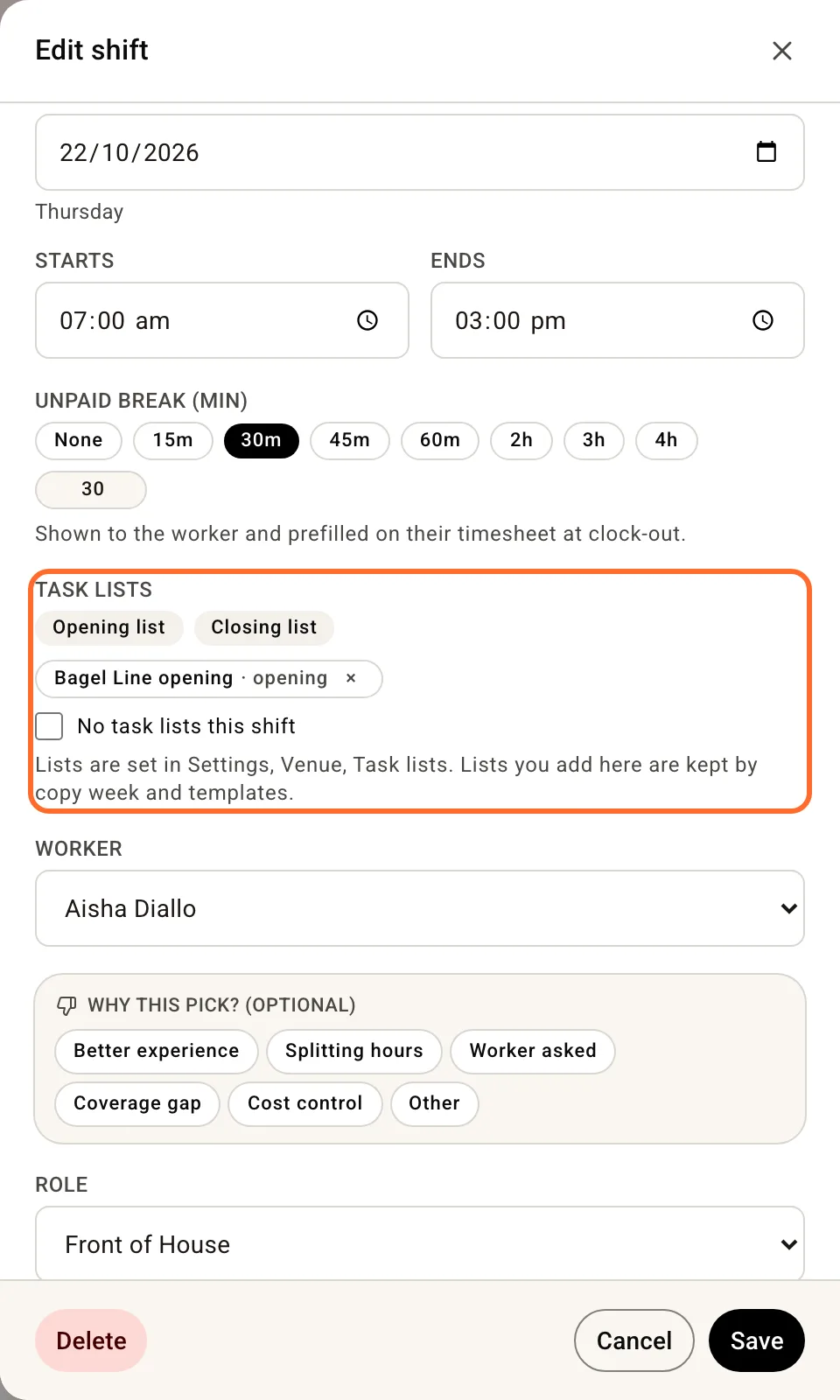
The row appears once the venue has a list that is on. A shift posted to the Supp marketplace has no Task lists row.
3. What staff see
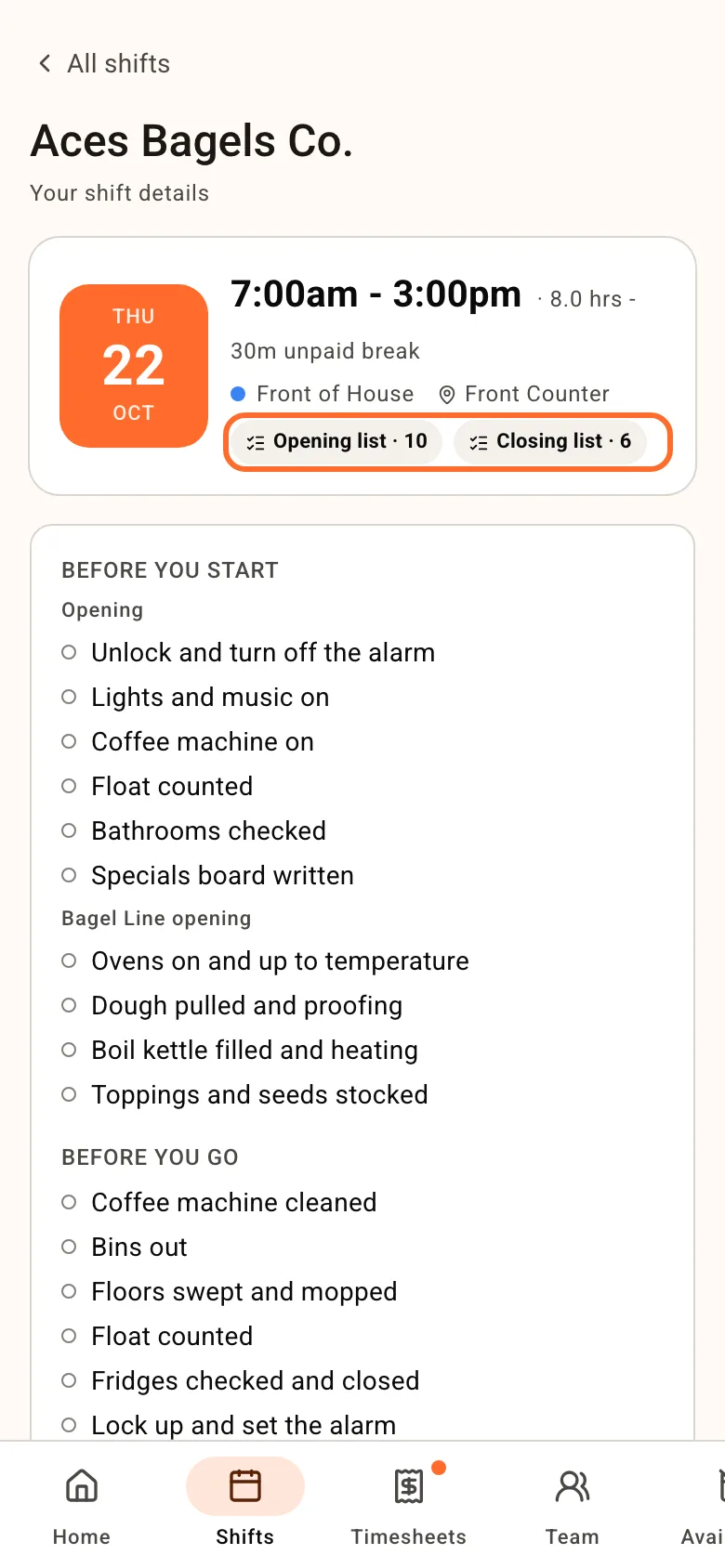
Before the shift, the shift card on their phone shows Opening list and Closing list with the number of tasks, the shift's own page lists every task under Before you start and Before you go, and Home shows an On this shift card for the next shift. All read-only until they clock in.
After they clock in, the opening list appears on Home under their shift, one row per task. A tap ticks it and saves on its own. The closing list sits under it, folded, and stays on the wrap-up screen after they clock out so a missed tick can still be made. On the tablet, the list shows after their punch with Done and, on an opening list, Skip for now, and someone clocked in can tap their name and Task list to tick during the shift. Nobody has to tick at the start or the end; those are just the moments the tablet offers it. The staff side is in Clock in and out.
4. Choose how staff tick
At the bottom of Settings, Venue, Task lists, four switches, each saved as you switch:
- Tick on their phone - on. Stays on when clocking in from a phone is off, so a tablet-only venue still ticks on phones.
- Tick on the kiosk - on. The list after a punch, and the Task list button mid-shift.
- Ask before clocking out - on. The one-line "Clock out anyway?" question when required closing tasks are unticked. Off, the punch just records.
- Email when closing tasks are left unticked - off until you turn it on. After a clock-out with required closing tasks unticked, the worker gets an email where a tap ticks each task, and the manager who published their roster gets the same list with a link to the timesheet. One email per shift, within the hour, and nothing when every required task is ticked.
5. See what was ticked
Open Timesheets and click a row. Under Task lists the review panel shows Opening 5/5, Closing 3/4. A line with tasks left unticked expands to name them.
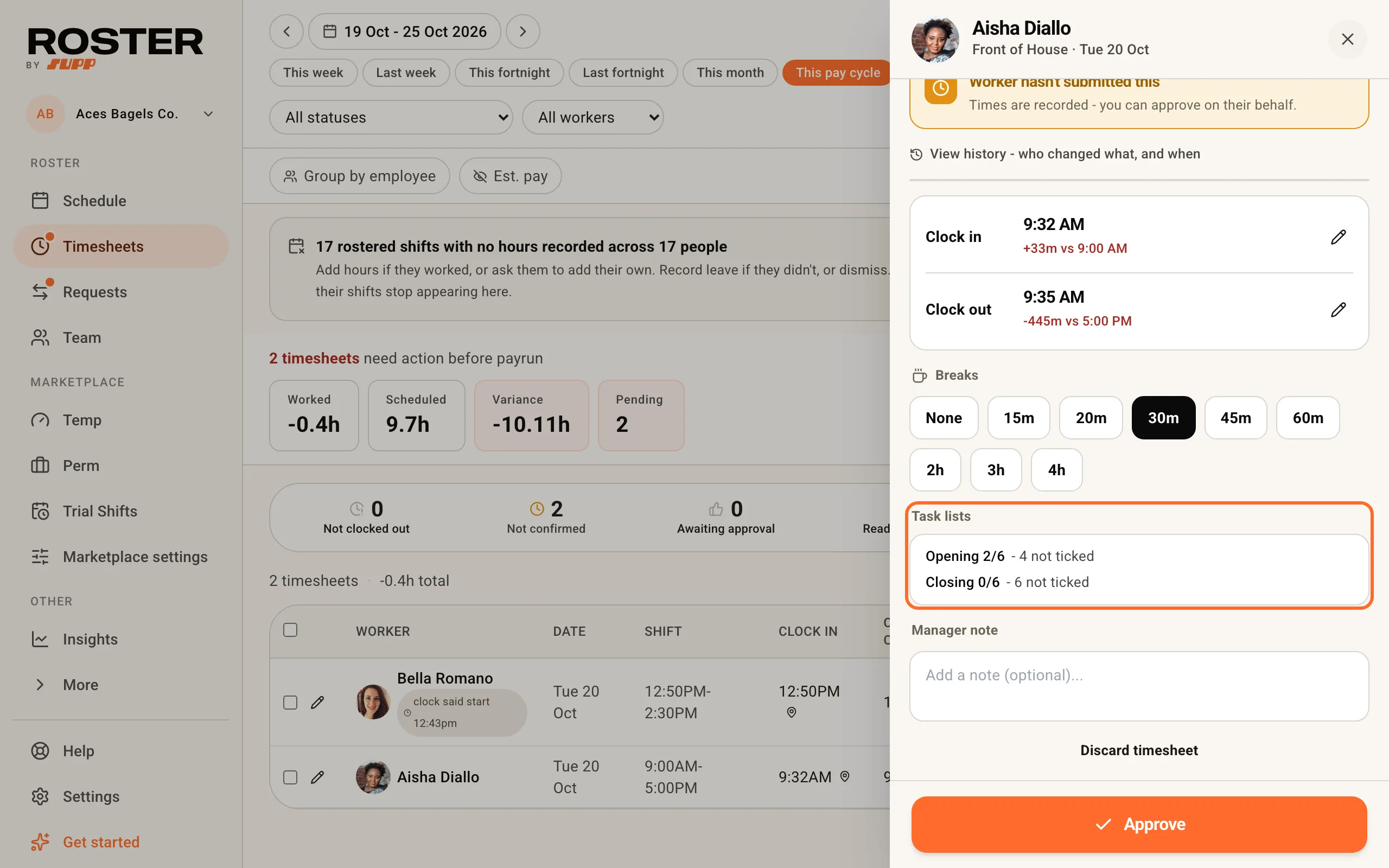
The Activity Log records every tick and untick with the list name and whether it was made on a phone or at the tablet, and every change to a list.
Staff who come in early to get through the opening list are paid from their punch unless you say otherwise. True up early starts to the roster, under Settings, Venue, Timesheets, pays from the rostered start and keeps the real punch on the timesheet.
Related
- Opening and closing task lists - the questions in one place
- Set up clock-in - where staff can clock in, and the tablet
- Kiosk mode - the tablet in detail, including paying from the rostered start
- Approve timesheets