For groups that run two or more venues. One organisation, every venue follows it, and the people who work across sites are one tick away. Owners only; a venue manager sees nothing of this.
1. Create the organisation
Open Settings, Organisation. The tab appears once you own two or more venues. Name the organisation and pick a template venue: its roles, clock-in rules, swap policy, publish mode, pay cycle, ABN and branding seed the organisation. Click Create.
2. Attach your other venues
At the top of the page, pick a venue from Attach a venue and click Attach.

A short wizard compares the venue with the organisation. Where they already match, the venue simply links. Where they differ, the venue keeps its own value unless you untick it, so attaching never silently changes a venue's rules.
3. See what each venue keeps
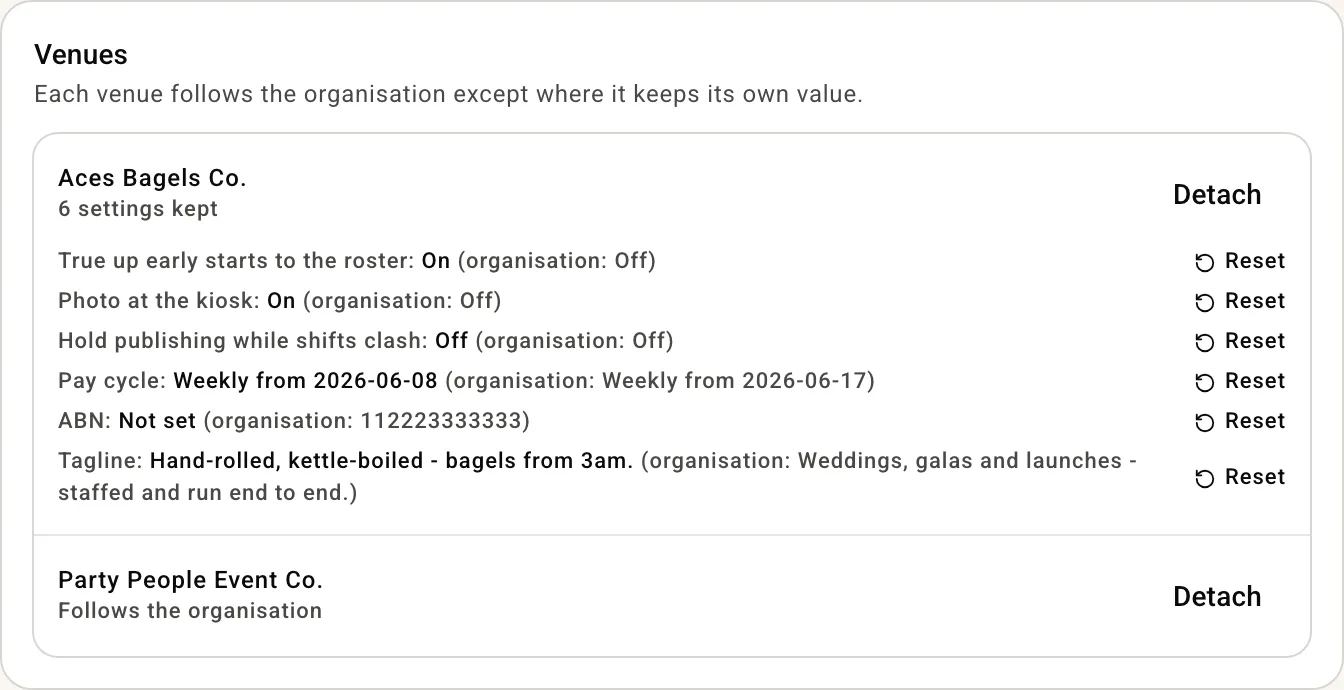
The Venues card lists every attached venue. Follows the organisation means it matches on everything; 6 settings kept means it holds its own value on six of them, each listed with the organisation's value beside it. Reset puts one back on the organisation's value. Detach takes the venue out of the organisation and leaves its settings as they are.
4. Roles everyone shares
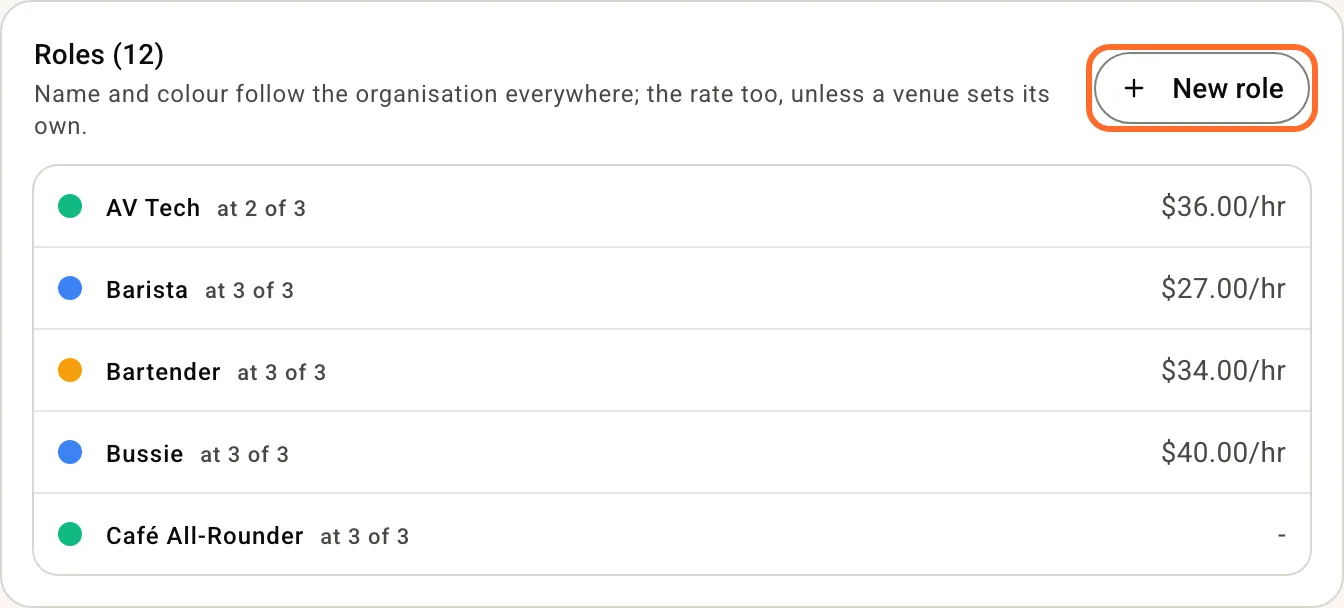
The Roles card is the organisation's catalogue. A role's name and colour follow the organisation at every venue. Its rate does too, unless a venue sets its own, which shows under the role with a Reset. New role creates it at every venue at once.
5. Rules for every venue
Three cards set the rules once: Clock-in rules (own phone or browser clock-in, kiosk PIN and photo, early starts, auto-submit), Swaps and handovers (who has to agree before a worker trades a shift or hands one back) and Scheduling (publish mode, holding a publish over clashes, blocking rostering over unavailability, pay estimates for staff, starting the Schedule's week on each venue's pay cycle day). Save applies the card to every venue. A venue that later edits one of these on its own Settings keeps that value, and the Venues card shows it as kept.
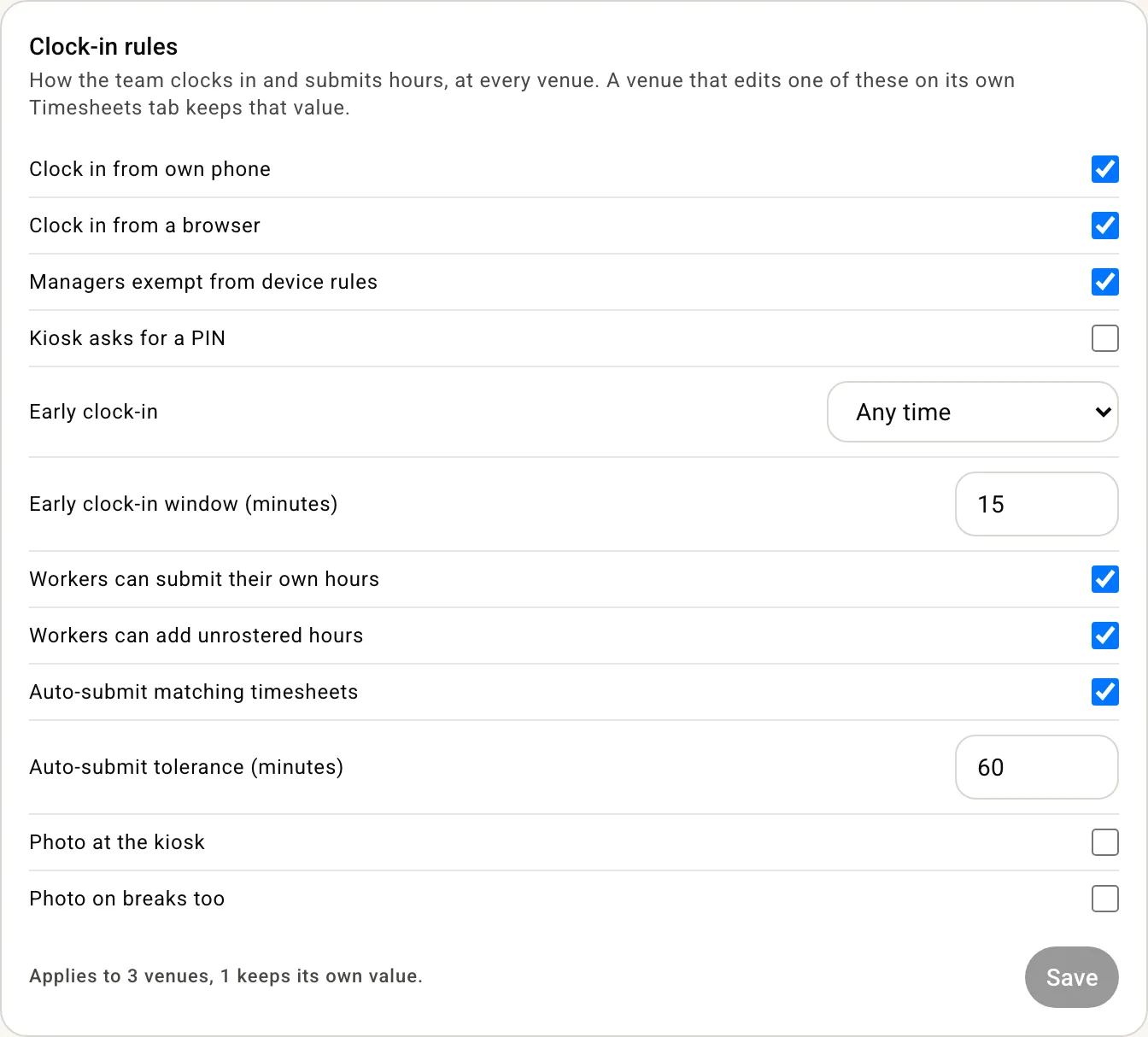
Under it, the Kiosk access card lists everyone across your venues once. Tick a person and they can set up and exit the kiosk at every venue they work at, and nothing else. Managers and owners always can. With Exit kiosk needs a PIN on in Clock-in rules, they exit with the PIN they clock on with. Send them the Run the kiosk guide.
6. Business details
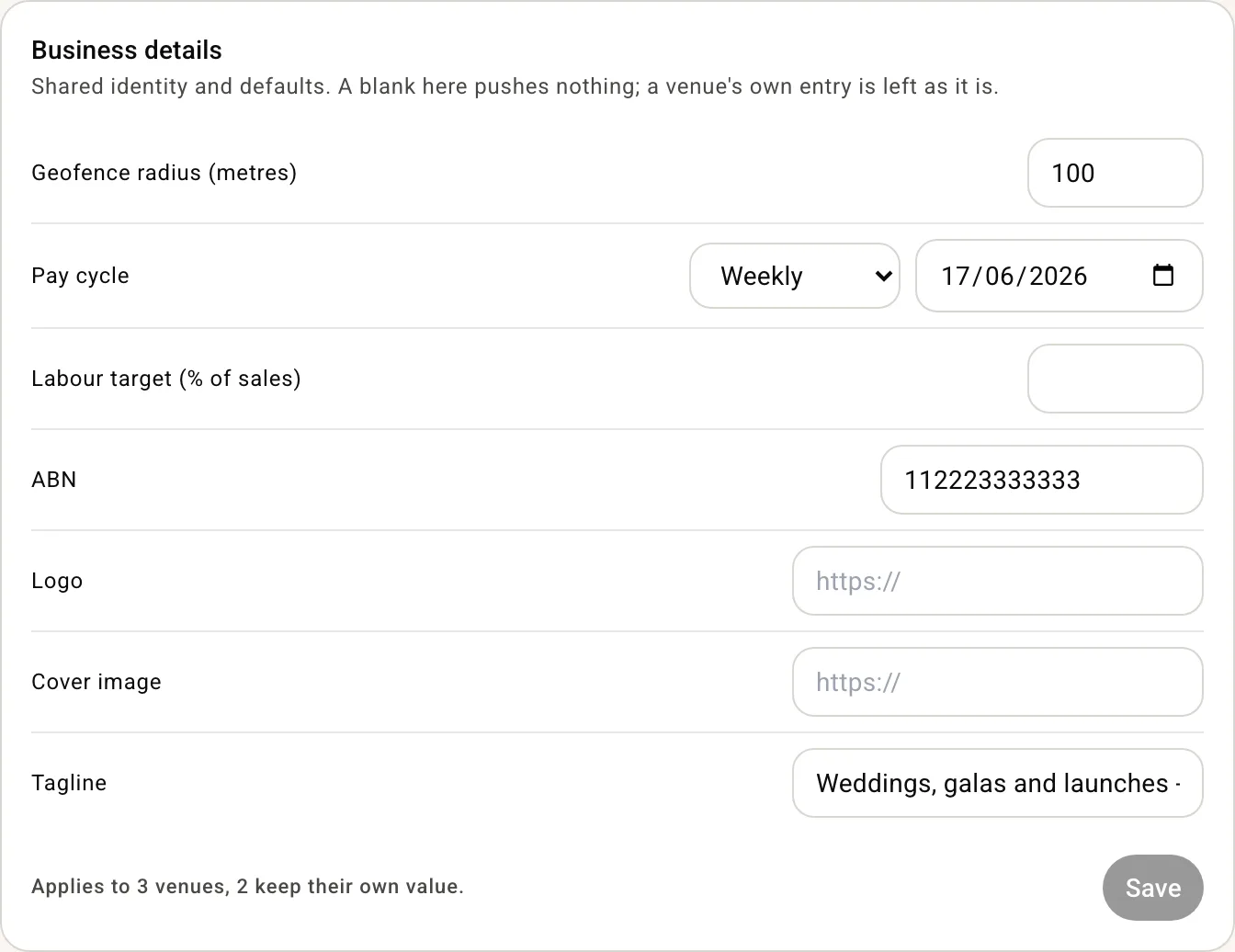
Pay cycle, ABN, tagline and branding. A blank here pushes nothing, so a venue's own entry is left alone.
7. Who can edit the organisation
Members lists the organisation's owners and admins. Owners edit it and attach venues; admins can see it. Add an owner of one of the venues from the dropdown.
8. Your team across venues
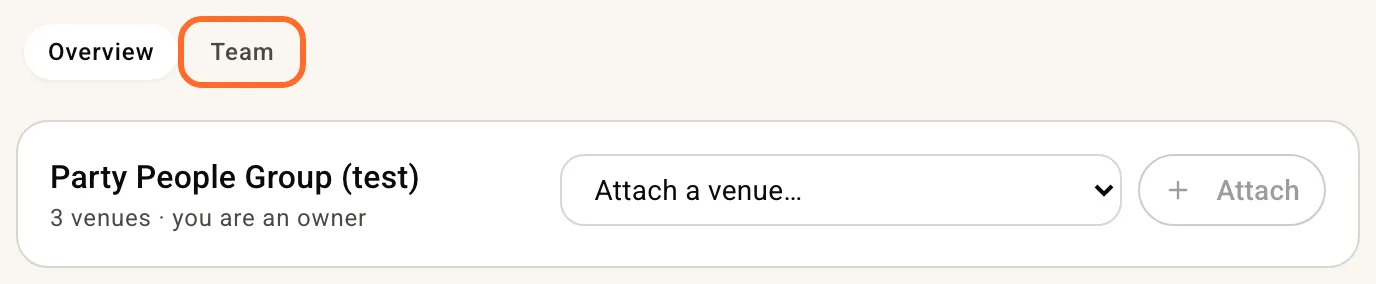
Switch to Team at the top of the page.
Everyone across your venues is listed once, with a tick per venue. Tick a venue to put someone on its team straight away, with the pay, award, employment type and contact details they have at the venue they came from, marked as existing staff so they are not asked for payroll details again. They get one text or email saying they have been added, and the venue shows in their app. Untick a venue to take them off it; any upcoming shifts they held there go back to unfilled. Owners stay on their own venue.
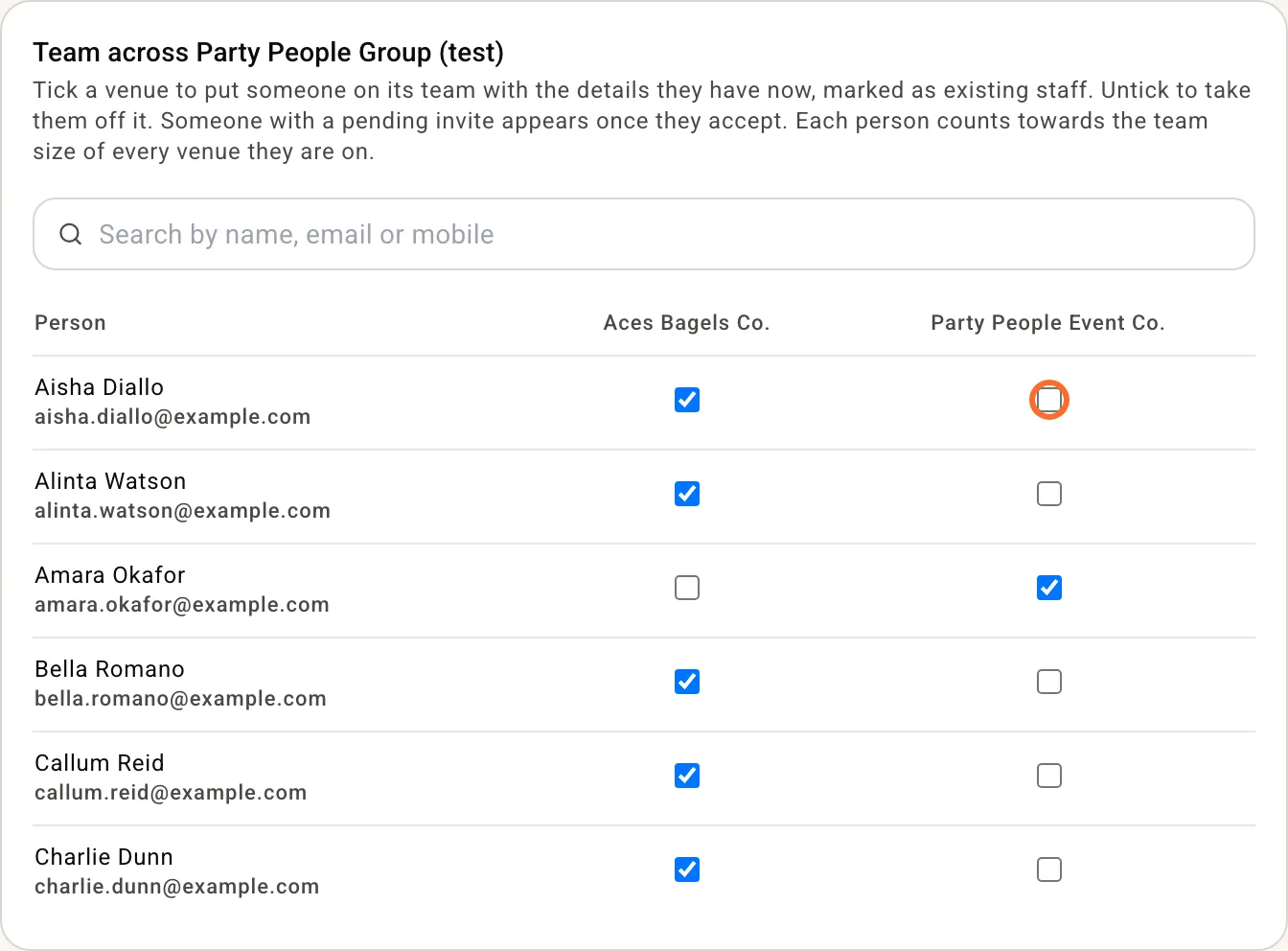
Pay can differ by venue, so change their rate on that venue's Team page after adding. Payroll pairing stays per venue too. Someone with a pending invite appears once they accept; for a brand new hire who works at several venues, tick Also add to on the invite form instead (Add a new employee).
Working across venues day to day
- All venues in the venue switcher opens the schedule across the group, every person once, with clashes shown. Copy a week or publish on every venue from there.
- Timesheets has a switch for This venue or All my venues, grouped by venue, with the pending count for each.
- Staff keep one login. They switch venues from the name at the top of their app, and their shifts at every venue show in one list.
- Billing stays per venue, priced by team size, and a person on two venues counts at each.
More in Running more than one venue.